📑 Table of Contents
- 1. Executive Summary: Can You Really Build a Website Without Coding?
- 2. Understanding the 3 Core Building Blocks (Domain, Hosting & No-Code Builder)
- 3. Comparative Analysis: Top No-Code Website Building Platforms
- 4. Step-by-Step Tutorial: Building Your First Website from Scratch
- 5. Designing Core Pages: Homepage, About, Services & Contact Forms
- 6. Mobile Optimization & Google Search SEO Basics
- 7. Pre-Launch Checklist & Frequently Asked Questions (FAQ)
1. Executive Summary: Can You Really Build a Website Without Coding?
If you are planning to build a website for your business, personal portfolio, or blog, you might assume you need to hire an expensive software engineer or spend months learning complex HTML, CSS, and JavaScript. The reality is that learning how to create a website without coding has become simple, intuitive, and accessible to anyone.
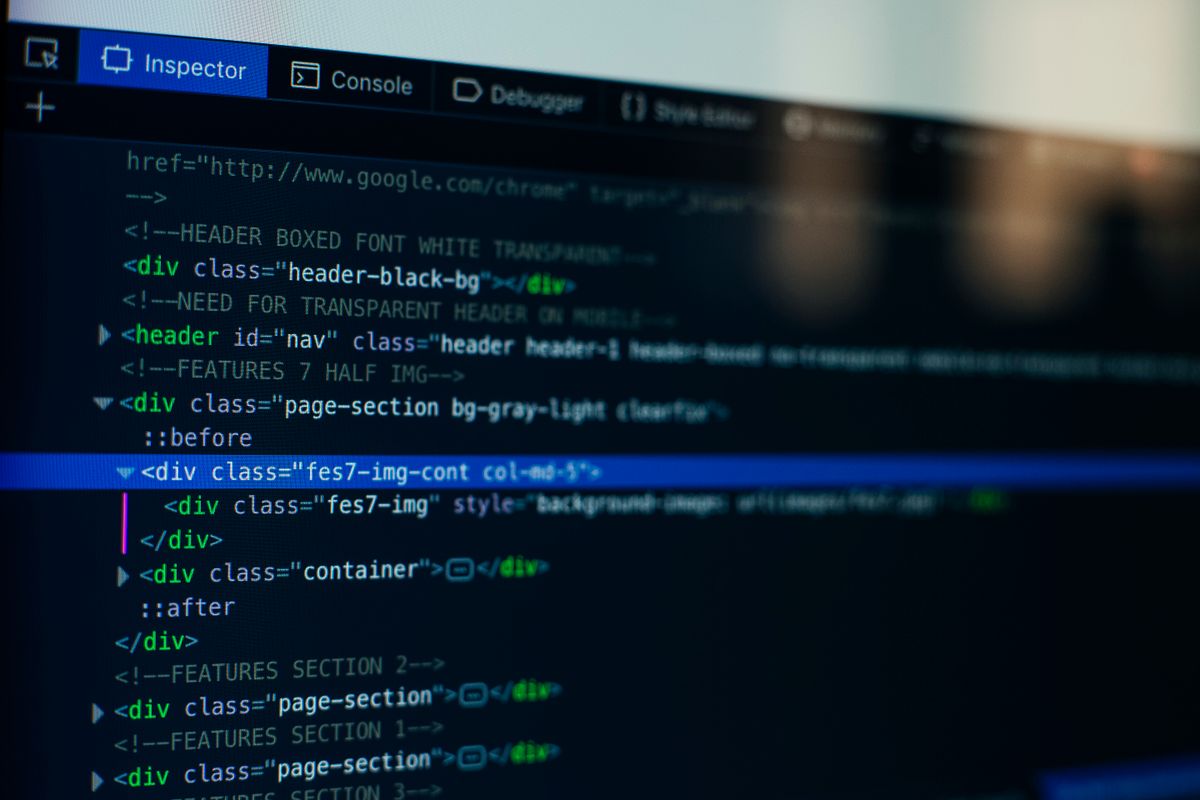
Modern no-code website platforms utilize visual drag-and-drop editors and pre-designed templates that automatically generate underlying web code in real time. Whether you want to showcase your portfolio, write blog posts, or launch an online shop, you can build and publish a custom website in just a few hours.
2. Understanding the 3 Core Building Blocks (Domain, Hosting & No-Code Builder)
Every website on the internet relies on three fundamental components to operate smoothly:
- Domain Name (Your Web Address): The unique web address visitors type to find your website (for example,
yourcompany.com). Think of it as your website's street address. - Web Hosting (Your Web Storage): A secure server where your website's images, text, and pages are stored so they can be accessed globally 24/7.
- No-Code Website Builder (Your Visual Studio): The visual drag-and-drop software used to add text, customize colors, arrange images, and design pages visually.
3. Comparative Analysis: Top No-Code Website Building Platforms
Selecting the right no-code platform depends on your technical comfort, budget, and long-term website goals:
| No-Code Platform | Best Use Case | Ease of Use | Hosting & Control |
|---|---|---|---|
| WordPress.org + Elementor | Blogs, business websites & long-term scalability | Easy (Visual drag-and-drop block builders) | 100% full ownership & custom hosting control |
| Wix / Squarespace | Beginners, portfolios & small local business pages | Very Easy (All-in-one drag & drop editing) | Managed platform hosting included |
| Webflow / Framer | Design agencies, tech startups & custom UX | Moderate (Visual CSS layout controls) | Managed high-performance cloud hosting |
| Shopify | E-commerce stores & product selling | Easy (Store template builder & payments) | Managed e-commerce cloud platform |
4. Step-by-Step Tutorial: Building Your First Website from Scratch
Follow this 5-step tutorial to get your website online today:
- Step 1 — Register Your Domain Name: Pick a domain name ending in
.com(for example,mybusinessname.com). Keep it short, memorable, and free of hyphens. - Step 2 — Set Up Web Hosting & SSL: Choose a reliable cloud hosting provider (such as Hostinger, Bluehost, or SiteGround). Ensure your host provides a free SSL security certificate so your web address displays the secure
https://padlock icon. - Step 3 — Install Your No-Code CMS: Use your hosting dashboard's "1-Click WordPress Installer" to set up your site in under 60 seconds.
- Step 4 — Select a Pre-Designed Starter Theme: Go to Appearance → Themes → Add New. Install a fast, lightweight free theme such as Astra, GeneratePress, or OceanWP.
- Step 5 — Import a Starter Site Template: Use your theme's starter template library to import a complete, pre-built website design with sample text and layouts.
5. Designing Core Pages: Homepage, About, Services & Contact Forms
Once your theme is installed, customize your site's main pages using your visual builder:
- Homepage: Add a clear headline explaining what your website offers, a high-quality main image, and a call-to-action button (such as "Get Started" or "Contact Us").
- About Page: Share your story, mission, and background. Adding a clear portrait photo builds immediate trust with visitors.
- Services / Products Page: List your main services, pricing details, and customer testimonials.
- Contact Page: Add a simple contact form plugin (like WPForms or Contact Form 7), your business email address, and social media links.
6. Mobile Optimization & Google Search SEO Basics
To ensure your new website performs well on Google Search and mobile phones, complete these 3 basic optimization steps:
- Install a Free SEO Plugin: Install plugins like Yoast SEO or Rank Math to add custom page titles and meta descriptions for search engines.
- Test Mobile Preview: Switch your builder to mobile preview mode. Check that text sizes remain legible and buttons are easy to tap on smartphones.
- Resize & Compress Images: Keep image file sizes under 200KB prior to uploading so your website pages load instantly.
7. Pre-Launch Checklist & Frequently Asked Questions (FAQ)
✅ Pre-Launch Checklist:
- Test all navigation menu links to ensure there are no broken 404 errors.
- Send a test message through your Contact Form to confirm email delivery.
- Verify that your SSL security padlock (
https://) displays correctly in your browser. - Include standard legal policy pages (Privacy Policy, Terms of Service, Cookie Consent).
- Submit your sitemap to Google Search Console for fast search indexing.
❓ Frequently Asked Questions (FAQ)
Can I really build a professional website without coding?
Yes! Over 60% of all websites on the internet are built using no-code content management systems and visual drag-and-drop builders like WordPress, Wix, and Squarespace.
How much does it cost to create a website without coding?
Starting a basic self-hosted website costs around $35 to $70 per year (including a domain name for $12/year and basic hosting for $3-$5/month). Free open-source templates and plugins handle design and features.
What is the easiest no-code website builder for total beginners?
For quick all-in-one setup, Wix or Squarespace are very easy. For long-term flexibility, ownership, and free expansion, WordPress.org with a starter theme (like Astra) is the most popular choice.
- WordPress.org Official Documentation & Visual Block Editor Guides
- Google Search Central Search Engine Optimization (SEO) Starter Guide
- W3C Web Accessibility Initiative (WAI) Guidelines